
myt support
myt mobile
myt travel
myt travel is an eSIM which provides you seamless data connectivity in 190+ countries. Reliable, affordable and without roaming charges, with myt travel you can keep your WhatsApp number and stay connected with your friends and family.
You can either buy on the myt travel app or on https://travel.myt.mu
On the myt travel app:
- Download and Install the myt travel app on Play Store, App store, Huawei App Gallery.
- On the app, go to Profile and tap on Login; register for first time user or sign in if you already have an account.
- Select your destination and preferred data plan
- Choose your payment method (Credit/Debit Card or myt money) and click on 'Pay'
- Confirm payment
- Your new data plan will be available in My eSIMs section.
Ensure that your Wi-Fi/mobile data is ON during the activation process.
Android
- Go to Settings, select Connections, select SIM Manager, select Add eSIM.
- Scan the QR code from another device or a printout.
- Follow the instructions on the screen.
iOS
- Go to Settings, Cellular/Mobile data, select Add eSIM.
- Follow the instructions on the screen.
Unlimited bundle gives you 1GB of high-speed data every 24 hours. After you finish the 1GB, your speed slows to 512kbps for the rest of the 24-hour period.
Your 1GB high-speed allowance resets every 24 hours from the time your bundle is activated. Example: If you activate the bundle at 10:00 AM, it resets the next day at 10:00 AM.
You need an eSIM compatible device to use myt travel.
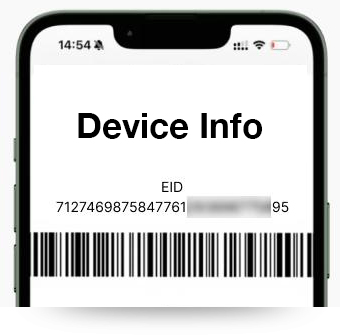
Dial *#06# to confirm your phone's eligibility. Your device is compatible if "EID" appears under Device Info.

Yes, myt travel offers affordable mobile data plans for both myt and non-myt customers traveling abroad.
Yes. It is recommended to switch off data roaming on your primary number (existing mobile number) to avoid bill shock. Switch on data roaming on your secondary number (eSIM) to enjoy the benefits of myt travel. See instructions.
Note: for SMS and calls, you will need your primary number to have roaming (roaming charges apply).
On myt travel app
- Go to My eSIMs
- Select your plan and tap on View details
- Tap on View plan details to view your consumption
Online
- Sign in to your account.
- Select My eSIMs
- Tap on Plan details to view your consumption
The validity of each plan varies but the validity period takes effect on the date of the top up.
For example, when you purchase a 1GB plan with a validity period of 7 days and top up an additional plan of 3GB with a validity period of 30 days, your plan will be 4GB (1GB + 3GB) and the validity period will be extended by 30 days.
Each myt travel eSIM profile is typically associated with one device. If you need to use myt travel eSIMon multiple devices, you'll need to purchase separate profiles for each device.
No, 1 QR code can be scanned/ used by 1 device only.
Please contact us on our WhatsApp number 55005001 or send an email to myttravel@telecom.mu immediately to deactivate the profile and prevent unauthorized usage. You can then go on https://travel.myt.mu to purchase a new plan and activate a new eSIM profile.
Yes, myt travel allows you to use mobile data in multiple countries during your trip, provided your purchased plan includes coverage in these countries. We advise you to choose regional plans to ensure it covers all the countries you plan to visit.
Please ensure that your device's eSIM settings are properly configured, your data roaming is switched on your myt travel eSIM and that you're within coverage range. You can also reach out to us on our WhatsApp number 55005001 for further assistance or follow the troubleshooting tips:
- Check Network Coverage: Ensure that you are within the coverage area of the network provider associated with your myt travel as coverage may vary depending on your location and destination. If you're experiencing poor reception, try moving to a different location or area with better network coverage.
- Restart Your Device: Sometimes, a simple restart of your device can resolve connectivity issues. Turn off your device, wait a few seconds, and then turn it back on to see if the issue persists.
- Verify eSIM Settings: Double-check the eSIM settings on your device to ensure that the myt travel profile is properly installed and activated.
Go to your device's settings menu, then look for the "Cellular" or "Mobile Data" section to manage your eSIM settings. Make sure the myt travel profile is selected as the Cellular data plan. - Reset Network Settings: Try resetting your device's network settings. This will reset Wi-Fi, Bluetooth, and cellular settings to their default configurations.
Note that resetting network settings will remove saved Wi-Fi networks and Bluetooth devices, so you may need to re-enter passwords and re-pair devices - Check for Account Balance and Validity: Ensure that your myt travel account has sufficient balance and that your data plan is still valid. If your account balance is low or your plan has expired, you may experience connectivity issues until you top up or renew your plan.
You can purchase your myt travel eSIM before or upon arrival at your destination.
To buy your myt travel when abroad:
- Enable roaming on your local SIM to receive OTP
- Make payments via myt money or credit card (Visa, Mastercard)
To avoid any hassle, we recommend you purchase your myt travel before your flight.
Ensure that your Wi-Fi/mobile data is ON during the activation process.
Go to My eSIMs and click on 'Install eSIM'
Install eSIM (Android)
- Tap on Activate eSIM
- On eSIM Installation pop-up, tap on OK
- In Connections, go on SIM Manager and tap on Add eSIM
- Select Scan QR Code
- Click on Enter activation code
- Click and paste the activation code
- Tap on Done
- Tap on Add (Installation may take some time, do not exit the screen)
- Follow instructions on screen
- Once you reach your destination, connect to a mobile network/operator and turn ON Data Roaming for your eSIM
Install eSIM (iPhone)
- Tap on Activate eSIM
- Tap on Allow
- Follow the instructions on the screen
- Once you reach your destination, connect to a mobile network/operator and turn ON Data Roaming for your eSIM
On the myt travel website (https://travel.myt.mu)
- Select your destination and preferred data plan
- Register or sign in if you already have an account
- Choose your payment method (Debit/Credit card, myt money, MauCAS), and click on 'Pay now'
- You will be directed to a confirmation page and receive a mail notification with your QR code once your order has been processed.
- You can also find your QR code under the My eSIMs tab.
- Scan the QR code received by email to install the eSIM on your device and follow the instructions to activate your plan.
If you are experiencing issues to install, ensure the following:
- Disconnect Wi-Fi and turn it on for a few minutes to allow the eSIM to set itself up correctly after scanning the QR code.
Additional Information
- If your eSIM is not connecting to a network, please ensure that Cellular/Mobile Data is assigned to your eSIM and Data Roaming is ON.
- If you are connected to a network but data connection is not working as expected, please check if APN is mentioned in your eSIM profile information. If yes, please set the correct APN for your eSIM. Please turn Airplane mode ON for a few seconds, then turn it OFF, and check the connection again.
Yes, you can still use data, but at a reduced speed of 512kbps until the next reset.
With myt travel, there are no roaming charges, no bill shock.
myt travel is an eSIM with mobile data plan supporting data ONLY. Traditional calls and SMS are not available. However, you can stay connected via WhatsApp calls and texts. (This includes other apps which use mobile data for calling).
You can use the following payment methods:
(a) myt travel app: myt money and Debit/Credit Card (Visa, Mastercard).
(b) Online: myt money, Debit/Credit Card (Visa, Mastercard) and any local mobile payment app.
On myt travel app
- Go on My eSIMs
- Tap on Top Up
- Select your plan
- Tap on Buy now
- Follow the instructions on the screen
Online
- Sign in to your account.
- Click on the Profile icon
- Go to My eSIMs
- Select Add Top Up
The validity period for a plan begins upon connection to the destination country. For example, if a user purchases a bundle for Turkey (valid for 30 days) but downloads the eSIM in Mauritius, the plan will be activated once the user arrives in Turkey, and the validity period will then start.
Yes, myt travel is the ideal mobile data plans for both personal and business travel purposes. You can choose from a variety of data plans tailored to your specific travel needs, whether you're traveling for leisure or business.
No. The Profile is valid for one device only.
Yes, you can. Kindly refer to email sent for activation of myt travel. Download and follow Activation Instructions accordingly.
No. Unfortunately, a refund is not possible once myt travel is purchased.
Cellplus has partnership with various network providers worldwide who offer coverage in multiple countries and regions. The specific network providers may vary depending on your location and destination. On your preferred plan, click on Supported countries then click on the [i] next to the country you plan to visit to get the network providers available.
If you're connected to a network but experiencing issues with your data connection, please verify if the APN (Access Point Name) is provided in the selected bundle on https://travel.myt.mu. Select your specific bundle and click on '>' to view the APN information. If an APN is listed, set it correctly for your eSIM. Then, turn Airplane mode ON for a few seconds, turn it OFF, and check your connection again.
- For Android: Go to Settings > Mobile Networks > Access Point Names, tap Add or +, and enter the APN code/info under APN.
- For iOS: Go to Settings > Cellular > Cellular Data Network and enter the APN code/info under APN.
Contact Customer Support
If none of the above steps resolve your connectivity issues, please contact us on myttravel@telecom.mu or on our hotline number 55005001 for further assistance. Provide them with details about the issue you're experiencing, including any error messages or symptoms, so they can help troubleshoot effectively.